VS Code Agents Can Now Work While You're Away

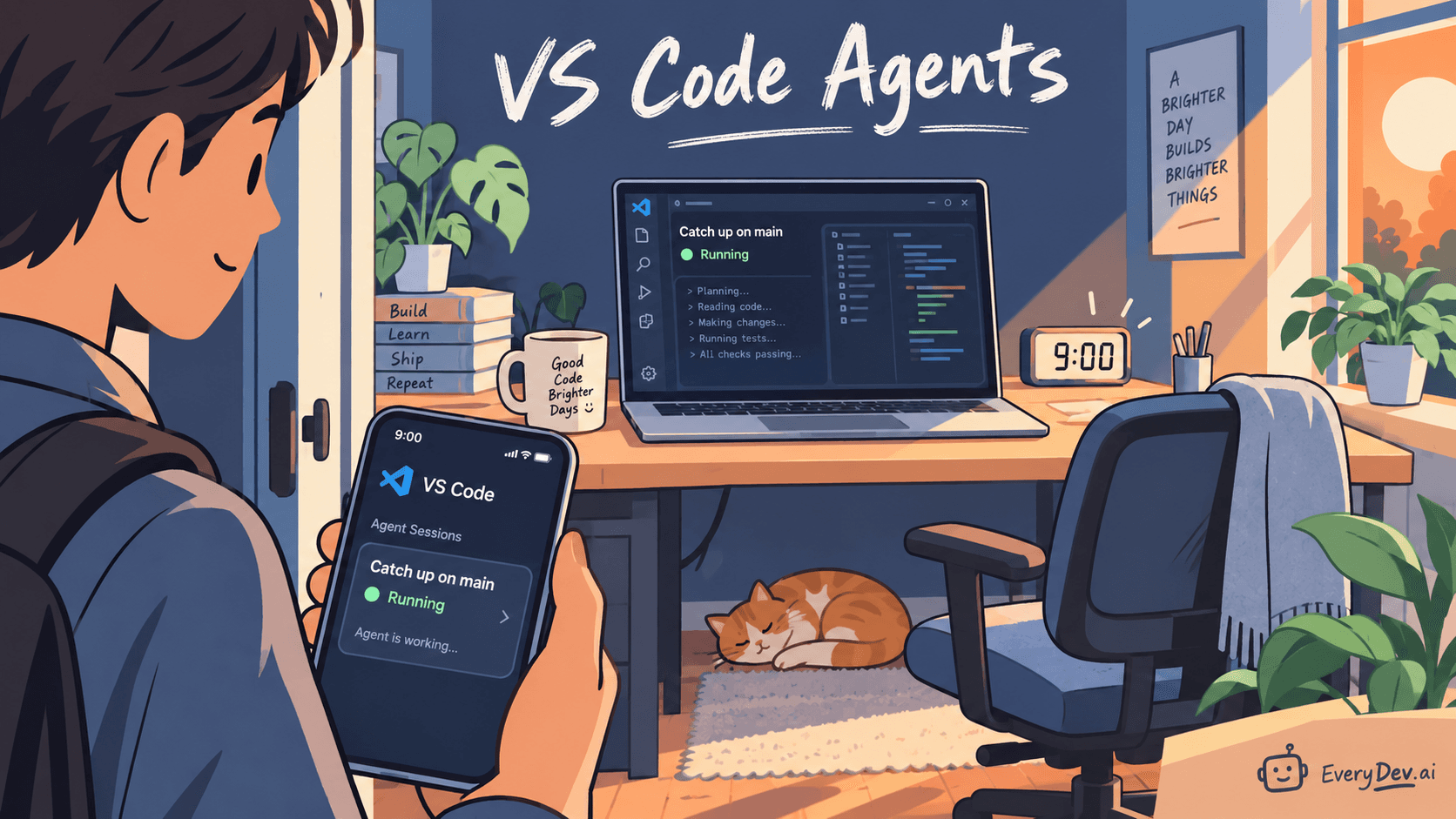
You can now ask a VS Code agent to check your repository every morning without starting the session yourself. On my machine, the Automations page in VS Code 1.140 offered a template called Catch up on main, set to run every day at 9:00 AM. The computer still needs to be awake, with VS Code or its Agent Host running when the session is due to start.
The September releases, 1.136 through 1.140, also added ways for an agent to fix problems on a pull request and for you to give an agent instructions from your phone. To understand when the agent can keep working, you need to know which process runs the session and what happens when you close VS Code.
What happens when you close the editor window
Previously, an agent session ran inside the editor window’s extension host. Closing that window ended the session.
The Agent Host runs agent sessions in a separate process. Editor windows, the Agents window, and remote clients connect to that process through the open Agent Host Protocol.
  Editor window ───────┐
  Agents window ───────┼──▶  Agent Host  ──▶  agent sessions
  vscode.dev/agents ───┘     (separate process)
  (through a dev tunnel)
You can start a session, close the folder, then reopen the folder and find the session still running. For local sessions managed by VS Code, the application itself still needs to stay open. Closing a folder and quitting VS Code have different effects on the session.
Automations: give an agent a recurring task
An automation saves a prompt and a schedule. At the scheduled time, VS Code starts a new agent session with that prompt.
You also choose the workspace, agent, model, and permissions. When the agent supports it, you can start each run in a new Git worktree based on a branch you select.
Suppose you want a summary of changes to your repository each morning. Write a prompt describing which changes to summarize and what the summary should contain. If you only want a report, say that the agent should leave the files unchanged.
To try an automation:
- Open the Agents window and select Automations. The feature is in preview and rolling out gradually. If it’s missing, enable
chat.automations.enabled. The documentation says the setting is off by default on Stable. - Pick a template or select Create Automation. Review the prompt, workspace, agent, model, and permissions.
- Set the schedule to Manual, create the automation, and select Run now.
- Open the session under History and review the result. Once the prompt produces what you need, choose an hourly, daily, or weekly schedule.
Scheduled runs still have a few requirements. The computer must be awake. Schedules that use Agent Host need that process running; other schedules need a running VS Code window. Don’t assume the automation will continue after you quit the application.
After an interruption, a missed schedule can trigger a catch-up run. You shouldn’t expect a separate run for every scheduled time you missed. A July bug report describes a run that was skipped because the application started before the models were ready. Check History during the first few mornings to confirm the automation is running.
An automation uses the permissions you give its agent. The create dialog defaults to Manual permissions, so if the agent needs approval to read a file, run a command, or make a change, the session waits for you to approve the request.
Recommended
Nvidia Paid 86 Times Revenue for Hugging Face

Nvidia just spend $12.93 billion on Hugging Face, a company producing roughly $150 million in annualized revenue. The multiple is about 86 times revenue. It shifts depending on which number counts. Nvidia's SEC filing pu…
Read nextAgent merge: fix problems on a pull request
A pull request can need several rounds of changes before it’s ready to merge. A check fails, a reviewer asks for a change, or another commit on main creates a merge conflict.
Agent merge watches the pull request associated with a session and asks the agent to address those problems. The feature has been in preview since VS Code 1.136. Depending on your settings, it can then merge the pull request or add it to the merge queue.
GitHub auto-merge waits until a pull request meets its merge requirements. It doesn’t repair a failed check or make a change requested by a reviewer. Agent merge asks the agent to do that work.
Enabling agent merge switches the session to Autopilot with Assisted permissions. Each additional attempt to fix the pull request uses model requests.
The automatic merge setting has three options: Off, If Unchanged, and When Ready. If Unchanged allows a merge only when agent merge made no changes during its last pass. That condition doesn’t guarantee that a person has reviewed changes from earlier passes.
I’d start with automatic merging set to Off so you can review the agent’s changes before allowing a merge.
To enable the feature, turn on chat.agentMerge.enabled, then enable agent merge for the session from its title bar.
Use vscode.dev/agents from your phone
You can also connect to the agents on your computer from a browser on another device.
In the VS Code title bar, look for the icon with the tooltip “Allow connections from other machines and vscode.dev/agents.”
vscode.dev/agents connects to your computer through a dev tunnel. The agent sessions run on your computer, while the browser lets you send instructions, review changes, and manage sessions.
The remote sessions documentation describes the setup:
- On the computer with your code, run
code tunnel. The first run asks you to sign in with GitHub or Microsoft. - On your phone or another device, open
vscode.dev/agentsand select Continue with GitHub. - Select your computer from the hosts bar at the top. Its status should be Online.
- Choose a folder and an agent, then start a session.
When you connect, a dialog asks whether agents should continue after you close the Agents window. Keep My Agents Running in a Dedicated Process lets them continue until their work finishes. Stop My Agents if I Close Agents stops them when you close that window.
Choose Keep My Agents Running in a Dedicated Process if you want to start a task from your phone, close the browser, and return to the result later.
Your computer still needs to remain available. If the laptop sleeps, the session shows as disconnected and reconnects when the computer becomes available again. You can use code tunnel --no-sleep to keep the computer awake, or code tunnel service install to install the tunnel as a service.
Require authentication on the tunnel. An anonymous tunnel lets anyone who finds its URL start agent sessions on your computer, which the documentation warns is especially dangerous with auto-approval enabled. Tunnel connections are outbound and encrypted end to end, so you don’t need to open firewall ports.
As of October 2, the documentation still points to insiders.vscode.dev/agents, while vscode.dev/agents loads a stable 1.140.0 build.
Does the agent run on your computer or in the cloud?
Several coding tools offer scheduled agent tasks. Before choosing one, check where the agent runs and what needs to remain open.
| Tool | Feature | Where it runs and what must remain available |
|---|---|---|
| VS Code | Automations | Your computer, awake, with the required Agent Host process or VS Code window running |
| Claude Code | Desktop scheduled tasks | Your computer, awake, with the Desktop app open |
| Claude Code | /loop | Inside a running session |
| Codex | Automations | Desktop app; best while the laptop is awake |
| Google Antigravity 2.0 | Scheduled tasks | Available through the desktop app and CLI; runtime requirements remain unconfirmed |
| GitHub Copilot cloud agent | Automations | GitHub’s cloud |
| Cursor | Automations | Cloud agents |
| Claude Code | Cloud routines | Anthropic’s cloud |
VS Code Automations and Copilot cloud agent Automations share a name, but they run in different places. VS Code Automations run on your computer. Copilot cloud agent Automations run in GitHub’s cloud and are available for private and internal repositories on paid Copilot plans.
Claude’s Routines page also offers both local scheduled tasks and cloud routines. Check which kind you’re creating before assuming the task will run with your laptop closed.
The tools also support different ways to start a task. VS Code and the desktop scheduling features use schedules; Claude Code’s /loop repeats within a session. Copilot cloud agent supports schedules and repository events. Cursor supports schedules and triggers from GitHub, GitLab, Slack, Linear, and webhooks.
I couldn’t confirm where Antigravity’s scheduled tasks run. Google’s documentation describes recurring messages to agents on a minute-level schedule, but doesn’t establish whether the desktop app must stay open.
For a morning summary that needs your local files or tools, VS Code or Claude Desktop can work if you leave the computer awake and the required application or process running.
For nightly issue triage or weekly release notes that must run while your laptop is off, choose a cloud option such as Copilot cloud agent, Cursor, or a Claude cloud routine.
Try it for yourself
- In VS Code 1.140, create a Manual automation from Catch up on main. Review its prompt and run it once before scheduling it.
- Run
code tunnelon your main computer and openvscode.dev/agentson your phone. Confirm that the computer shows as Online and that the page requires you to sign in. - On a low-risk pull request, enable agent merge with automatic merging set to Off. Review how the agent addresses failed checks, review comments, or merge conflicts.
Sources
- GitHub Copilot in VS Code, September 2026 releases
- VS Code release notes: 1.136, 1.137, 1.138, 1.139, 1.140
- VS Code docs: Automations, Agents window, Remote agent sessions, Remote Tunnels, Security
- The Agent Host
- Copilot cloud agent automations
- Cursor Automations
- Claude Code: scheduled tasks and /loop, Desktop scheduled tasks
- Codex automations
- Google Antigravity: Introducing Antigravity 2.0, features docs
Comments
No comments yet
Be the first to share your thoughts