Every Major AI Coding Tool Now Has a No-Approval Mode

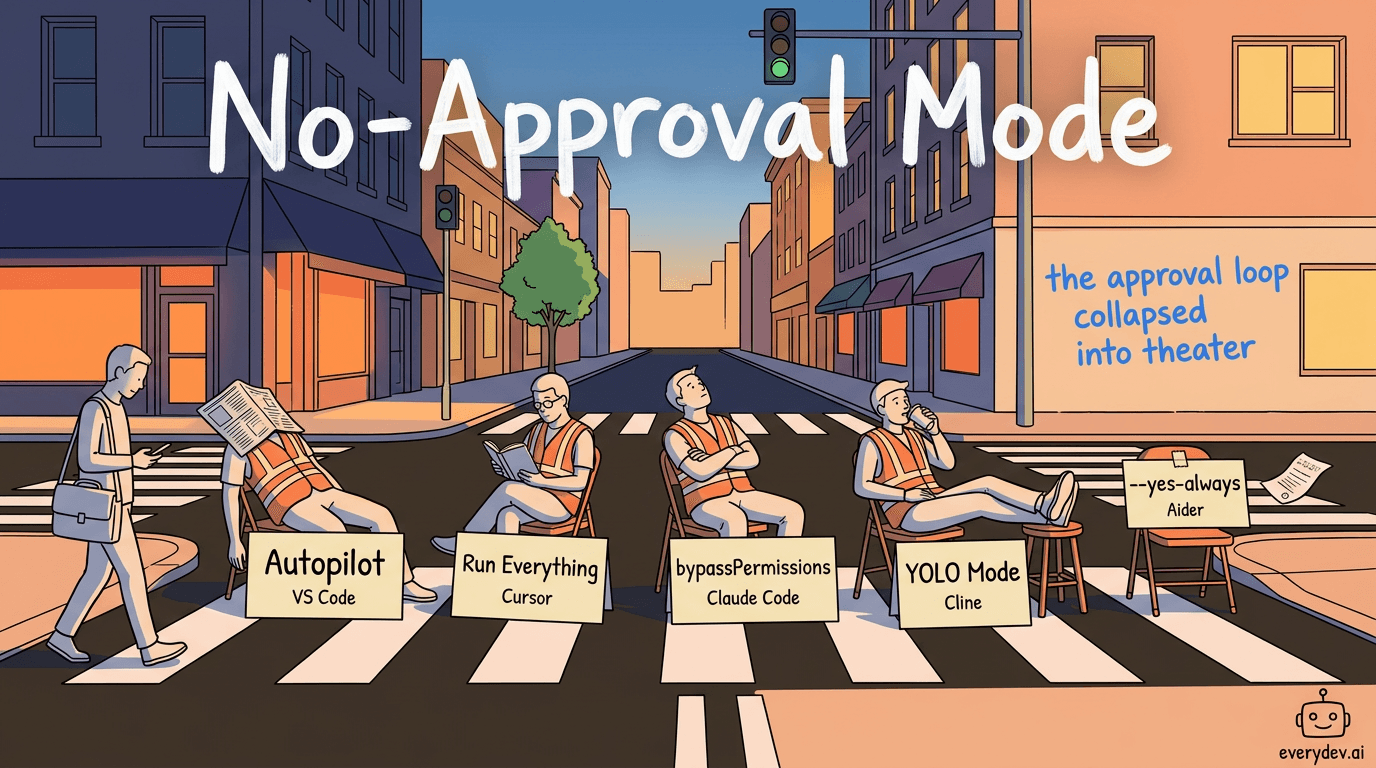
You ask your coding agent to scaffold a project. It creates files, installs packages, runs setup commands, and starts fixing import errors. Somewhere around the eighth "Continue" click, you stop reading what it's asking. You click. You are not supervising at that point. You are rubber-stamping.
Agents have gotten good enough to string together real work, so the approval model caught up with the tooling curve. The old pattern assumed each pause created safety. In practice, repeated prompts often just trained developers to click through them.
Every serious AI coding tool noticed this and shipped a fix. VS Code calls it Autopilot, Claude Code calls it bypassPermissions, Cursor calls it Run Everything, Cline calls it YOLO Mode, and Aider turns auto-commits on by default. Names and architectures differ, but the problem they solve is identical: manual confirmation had collapsed into theater, and theater is worse than honest automation.
The next step is easy to see from here. Tools are moving from "approve this command" toward "set the trust boundary once, then let the agent run inside it." That means more sandboxing, more policy controls, more scoped permissions, and longer-running agent loops that only stop when they hit a real boundary.
This piece is about what that shift looks like right now, where the implementations genuinely differ, and how to think about using them before unsupervised execution becomes the default expectation.
Contents
- Why These Modes Exist
- At a Glance
- VS Code Autopilot: The Tool That Adds a Completion Loop
- Cursor: A Sandbox by Default, Three Modes in Total
- Claude Code: Five Modes, One Dangerous One
- Cline and Roo Code: Granular Toggles Before You Get to YOLO
- Aider: Auto-Commit Is Already On
- What Every Implementation Gets Right
- What Every Implementation Gets Wrong
- Enterprise Controls: What Each Tool Actually Offers
- How to Pick the Right Level
- The Shift These Modes Represent
Why These Modes Exist
The approval loop made sense when agents were unreliable. Every tool call was uncertain; pausing at each step let you catch bad decisions before they compounded.
Then agents got better, and the loop became the bottleneck. It was adding overhead without adding protection.
Developers stop reading prompts they can predict. When confirmation is a formality, the cognitive overhead stays real even though the oversight is gone. At least auto-approval is honest about what it is. These modes exist because the ecosystem finally admitted that.
Recommended
Nvidia Paid 86 Times Revenue for Hugging Face

Nvidia just spend $12.93 billion on Hugging Face, a company producing roughly $150 million in annualized revenue. The multiple is about 86 times revenue. It shifts depending on which number counts. Nvidia's SEC filing pu…
Read nextAt a Glance
| Tool | Bypass Mode | How to Enable | Loops Until Done | Default Sandbox | Org-Level Block |
|---|---|---|---|---|---|
| VS Code | Autopilot (Preview) | Chat permissions picker | Yes | Experimental | Yes |
| Cursor | Run Everything | Settings › Agents › Auto-Run | No | Yes | Yes (Enterprise plan) |
| Claude Code | bypassPermissions | .claude/settings.json or --dangerously-skip-permissions | No | No | Yes (managed settings) |
| Cline / Roo Code | YOLO Mode | Settings › Features | No | No | No |
| Aider | --yes-always | CLI flag (--auto-commits on by default) | No | No | No |
VS Code Autopilot: The Tool That Adds a Completion Loop
VS Code 1.111 (released March 2026) introduced a three-tier permission model for agent mode in a single dropdown inside Chat.
Default Approvals keeps your existing rules intact. High-risk actions still pause and ask.
Bypass Approvals auto-approves all tool calls and also auto-retries on errors. Most friction is gone, but the agent still stops when a tool asks a blocking question.
Autopilot (Preview) adds two behaviors on top of Bypass: the agent auto-answers blocking questions from available context, and the loop runs continuously until the agent calls a built-in task_complete tool.
That last behavior is what separates VS Code Autopilot from every other tool on this list. Every other tool is removing approval friction. VS Code Autopilot also removes exit friction. The agent decides when the task is done.
To enable it in VS Code Stable:
"chat.autopilot.enabled": true
Then select Autopilot (Preview) from the Chat permissions picker. The permission level is session-scoped; close the session and you fall back to defaults. Admins can lock this down via the ChatToolsAutoApprove policy, which hides both Bypass and Autopilot from the picker entirely.
Cursor: A Sandbox by Default, Three Modes in Total
Cursor's approach differs from every other tool on this list, and the distinction is worth pausing on.
Most tools start from "ask for approval" and let you turn that off. Cursor starts from "run automatically in a sandbox." By default, when Agent executes a terminal command, it runs inside a restricted environment that limits filesystem access to your workspace and blocks all network traffic. Commands auto-run without asking, inside guardrails you didn't have to configure.
That is the Run in Sandbox default. The full three-mode system lives under Settings > Cursor Settings > Agents > Auto-Run:
| Mode | What it does |
|---|---|
| Run in Sandbox | Commands auto-run in a sandbox (filesystem and network restricted). Default. |
| Ask Every Time | All tools require approval before running. |
| Run Everything | Agent runs all tools without asking, no sandbox. |
Run Everything is Cursor's equivalent of YOLO mode, with no sandbox, no prompts, and no restrictions on what the agent can touch. When a sandboxed command fails because it needs broader access, you can choose "Add to allowlist," which lets that specific command bypass the sandbox automatically in the future; that is per-command escalation rather than a global bypass.
On top of the mode setting, Cursor exposes a separate layer of protection toggles:
- File-Deletion Protection: prevents auto-deleting files
- Dotfile Protection: prevents auto-modifying
.gitignoreand similar - External-File Protection: prevents auto-creating or modifying files outside the workspace
- Browser Protection: prevents auto-running browser tools
- MCP Allowlist: per-tool MCP bypass control
These toggles are independent of the auto-run mode. A developer running "Run Everything" can still keep File-Deletion Protection active. That layered model makes Cursor's implementation the most granular of the group.
Enterprise admins can lock or override all of it from the web dashboard, including whether end users are even allowed to enable Run Everything at all.
Claude Code: Five Modes, One Dangerous One
Claude Code structures this differently. Instead of a session picker, it uses a defaultMode field in your settings file, with five options:
| Mode | What it does |
|---|---|
default | Prompts on first use of each tool |
acceptEdits | Auto-accepts file edits for the session |
plan | Read-only; can analyze but not modify or execute |
dontAsk | Denies tools unless pre-approved via /permissions |
bypassPermissions | Skips all permission prompts |
bypassPermissions is the one that travels with a warning label. Set "defaultMode": "bypassPermissions" in .claude/settings.json and Claude Code stops checking before acting. File edits, shell commands, web fetches: all run without a prompt.
The CLI equivalent is --dangerously-skip-permissions. The name is doing real work there.
Note what bypassPermissions does not include: there is no completion loop, and no auto-answering of blocking questions. Claude Code removes the permissions layer. VS Code Autopilot replaces the entire supervision model. That distinction matters when you are choosing which mode fits a given task.
Anthropic recommends bypassPermissions only in isolated environments like containers or VMs. Organizations can enforce that by setting disableBypassPermissionsMode: "disable" in managed settings, which blocks both the setting and the CLI flag.
Cline and Roo Code: Granular Toggles Before You Get to YOLO
Cline takes the most incremental approach of the group. Auto Approve is per category:
- Read project files
- Read all files (extends outside workspace, but only if the base "Read project files" toggle is on)
- Edit project files
- Edit all files (outside workspace, same dependency on the base edit toggle)
- Execute safe commands
- Execute all commands (extends beyond safe commands, requires the base execute toggle)
- Browser access
- MCP server tools
The dependency structure matters. "Read all files" and "Edit all files" extend workspace access; they do not replace it. If the base toggle is off, the extended one does nothing. The model marks each command as safe or requiring approval at runtime. npm run build is typically safe. rm -rf requires approval. You can enable specific categories without enabling everything.
YOLO Mode is what you get when you enable everything at once. It lives under Settings > Features and auto-approves all file operations anywhere on the filesystem, all terminal commands including destructive ones, browser actions, MCP tools, and mode transitions (Plan to Act switches happen automatically). The Cline documentation is direct about what could go wrong: files deleted without warning, system settings modified, packages installed or removed, commits and pushes to version control.
The granular toggle system is Cline's real contribution here. A developer working on bounded tasks can enable "Edit project files" and "Execute safe commands" without flipping on YOLO. That is a much more defensible default for ongoing development work than a global bypass.
Aider: Auto-Commit Is Already On
Aider is the odd one out because its most significant unsupervised behavior is enabled by default.
--auto-commits is True unless you explicitly disable it. Every change Aider makes gets committed to your git history without a prompt. From the first session, changes are going into version control automatically.
When you want everything confirmed without interruption, you add:
aider --yes-always
This answers yes to every confirmation. Combined with the default auto-commits, the agent modifies files, runs commands, and commits the results, all without a pause. You review a commit history, not a series of approval dialogs.
Two more flags round this out. --no-git-commit-verify bypasses git pre-commit hooks with --no-verify, skipping whatever lint checks, secret scanners, or commit validators you have wired up. And --no-git disables git integration entirely, though at that point you have also removed your primary rollback mechanism.
Aider's model is an inversion compared to the others: rather than starting from approval-by-default and letting you disable it, the default configuration already commits without asking. --yes-always extends that pattern to the remaining prompts.
What Every Implementation Gets Right
Three things hold across every tool:
Permission bypass is explicit. You have to name the mode, set the flag, or enable the toggle. None of these tools bypasses approvals silently.
The warning is in the UI or the name itself. "Dangerously." "YOLO." The VS Code dialog before first use. Cline's documentation that names exactly what bad outcomes look like. The risk is not hidden.
MCP exposure is universal. Auto-approving tool calls means auto-approving MCP server calls. If a prompt-injected tool call gets through, it executes without a human in the loop. Every bypass mode expands this surface uniformly.
What Every Implementation Gets Wrong
The warnings in the docs are accurate but incomplete.
Every tool frames risk around what the agent might do to your files or your system in a single action. That is the obvious concern. The deeper risk is compound errors, where the agent makes a reasonable decision, then builds on it, and the second decision is shaped by the first potentially wrong one. With approvals on, you catch the first bad call before it compounds. Turn them off and you may inherit a chain of ten decisions all stacked on that first one.
VS Code Autopilot makes this most acute because of the completion loop. In a supervised session the developer surfaces ten decision points and can intervene at any of them. Autopilot delivers them as a finished package. You exchange real-time steering for delivered output. Sometimes that is the right call. Developers typically underestimate how often they would have intervened.
The other universal gap: every one of these modes changes who notices first when the agent makes a bad decision. The probability of that decision being bad stays the same.
Enterprise Controls: What Each Tool Actually Offers
Individual bypass modes are a developer decision. At the organization level, the question is different: which modes can you prevent developers from enabling at all, and what audit trail exists when they use them?
The tools split on this: two have mature enterprise control planes, and two have almost none.
VS Code / GitHub Copilot gives IT the most granular org-level settings of any tool here. Several agent settings are explicitly labeled "managed at the organization level" in the docs, meaning individual users cannot override them:
chat.agent.enabled: disables agent mode entirely for all userschat.tools.terminal.enableAutoApprove: blocks terminal auto-approval org-widechat.tools.global.autoApprove: disables full auto-approval of all tools (the docs note this "disables critical security protections")chat.tools.eligibleForAutoApproval: specifies exactly which tools require manual approvalchat.autopilot.enabled: removes the Autopilot option from the permissions picker
A default per-command blocklist forces manual approval for rm, curl, wget, eval, chmod, chown, and a handful of others. Orgs can extend or replace that list. Terminal sandboxing with filesystem and network isolation is also available, currently experimental.
Claude Code ships the most complete managed settings system of any tool here. Policies are delivered via the Anthropic admin console (server-managed settings pushed remotely), macOS MDM configuration profiles via Jamf or Kandji, Windows Group Policy or Intune via registry key, or file-based deployment to system directories. Managed settings sit at the top of Claude Code's five-tier precedence hierarchy and cannot be overridden by any user or project setting, including command-line arguments.
Key controls available only in managed settings:
disableBypassPermissionsMode: "disable": blocksbypassPermissionsand the--dangerously-skip-permissionsflag entirelyallowManagedPermissionRulesOnly: prevents users and project configs from defining their own allow/deny rulesallowManagedMcpServersOnly: restricts MCP servers to the admin-approved list; user additions still work but only admin-defined servers applyallowManagedHooksOnly: blocks user, project, and plugin hooks; only managed hooks runallowUnsandboxedCommands: false: forces all commands into the sandbox, disabling the escape hatchnetwork.allowManagedDomainsOnly: locks all network requests to the admin-defined domain allowlistavailableModels: restricts which models users can select
Orgs can also use OpenTelemetry metrics to monitor Claude Code usage and stream data to their observability stack.
Cursor separates its enterprise controls by plan tier. Team plan organizations can enforce sandbox mode and privacy mode org-wide. The Enterprise plan adds full lockdown of auto-run, browser tool, and network controls from the web dashboard, plus a repository blocklist, model access restrictions, .cursor directory protection (prevents agents from modifying project rules and settings files), and browser origin allowlists that block agents from navigating to domains outside the approved list. Audit logs, SCIM provisioning, and SIEM integration require Enterprise. Hooks can be distributed via MDM on Team; server-side distribution is Enterprise-only. The AI Code Tracking API and Conversation Insights, which show what kind of work agents are doing per developer, are also Enterprise-only.
Cline and Aider have no formal centralized management layer. There is no org-level admin console, no MDM integration, and no policy enforcement mechanism built into either tool. Configuration is per-user and per-machine. If a developer enables YOLO Mode in Cline, nothing in the tool's architecture prevents it or records that it happened. Teams deploying these tools at scale rely on OS-level device management and code review to catch the consequences; the tools themselves offer no visibility.
This gap maps predictably onto how each tool was built. VS Code and Claude Code were designed from early on to serve enterprise buyers with compliance requirements. Cline and Aider are developer-first tools where enterprise governance arrived late, if at all. That distinction matters when you are standardizing across a team that includes both cautious and risk-tolerant developers.
How to Pick the Right Level
Different tasks warrant different modes. A practical breakdown:
Full bypass works best for bounded scaffolding tasks, spec-driven work with clear acceptance criteria, and bulk refactors in a sandboxed branch. If you would approve 90% or more of the agent's decisions anyway and the remaining 10% are easily rolled back, bypass is the right call.
Selective auto-approve fits ongoing development where file edits and read-only commands are routine but terminal commands, MCP calls, and external requests still need review. Cline's granular toggles are built for exactly this.
Keep approvals on for production-adjacent workflows, anything touching infrastructure or credentials, and exploratory sessions where the design is still unsettled. If the agent has access to things you cannot easily undo, the approval step is doing real work.
Skip bypass entirely when untrusted MCP server configs are active, when your repo policy allows unattended merges or deploy triggers, or when the agent has network access to services you did not vet. These scenarios multiply risk; each one compounds the others.
The heuristic: the smaller the blast radius, the more confidently you can bypass. Where mistakes are trivially reversible, YOLO mode earns its name. Where they are not, those approval prompts are the safeguard.
The Shift These Modes Represent
Every tool offering a bypass mode is making the same bet: that developers can correctly identify which tasks are safe to run unsupervised.
That bet is sometimes right. Routine scaffolding, file generation, dependency installs in an isolated environment: these are genuinely low-risk. For those tasks, bypass modes are a legitimate productivity gain.
But "routine" describes your expectation, not a property of the task. The agent may read the situation differently and go somewhere you didn't anticipate. Bypass mode changes who notices that first; the likelihood of it happening is the same either way.
The teams using these modes well follow a consistent pattern: start supervised, build confidence in specific task types, promote those task types to bypass, keep everything else on approvals. The bypass list grows from evidence, not from optimism.
That is the sustainable way to use any of these modes. And given that every major tool in the ecosystem now ships one, figuring out where you draw that line is worth doing before you need to.
Links
About the Author
Founder at EveryDev.ai
Apple, Disney, Adobe, Eventbrite, Zillow, Affirm. I've shipped frontend at all of them. Now I build and write about AI dev tools: what works, what's hype, and what's worth your time.
Comments
No comments yet
Be the first to share your thoughts