Inside Look at Using Claude Code Remote Control

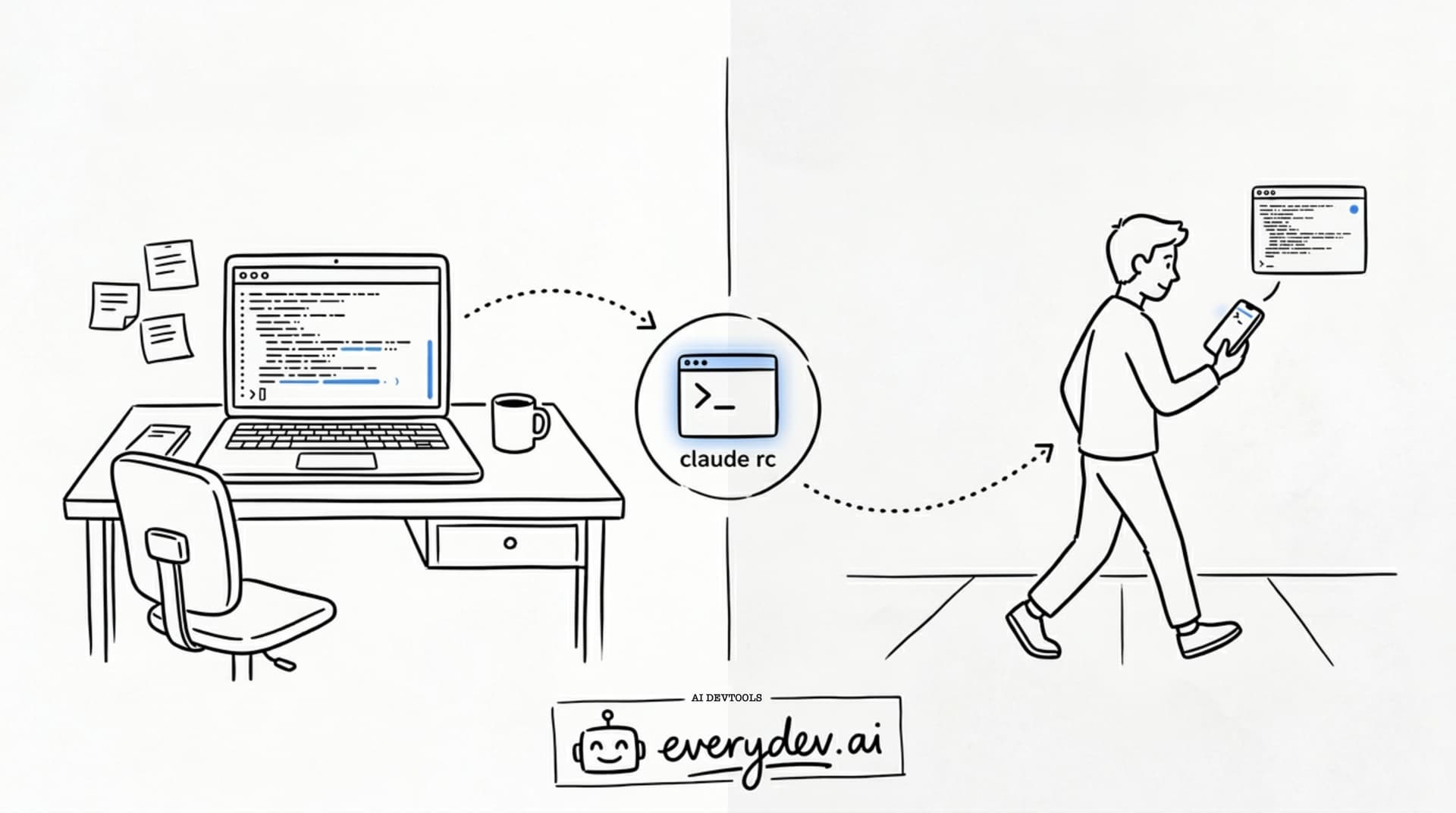
Anthropic's Remote Control, currently in research preview, adds a third option for Claude Code users who need to step away mid-session. Your session keeps running on your machine while your phone becomes a window into it. The implementation details are worth understanding. Remote Control is a relay system with specific trade-offs that affect how you use it.
You're three hours into a refactoring session. Claude Code is halfway through migrating your auth layer, and you need to step away from your desk. Before Remote Control, you had two options: leave your laptop open and hope the screen doesn't lock, or kill the session and restart later.
How the Connection Works
Remote Control uses a relay architecture rather than a direct connection. Your machine never opens an inbound port or listens for incoming traffic. Instead, it makes outbound HTTPS requests to the Anthropic API and registers itself as available. When you open the session on your phone, it connects to the same API endpoint on the other side. Anthropic's server then routes messages between the two.
This is the same pattern used by services like Tailscale and ngrok. Because your machine only makes outgoing connections, it works behind any firewall, corporate proxy, or home router without configuration. You don't need port forwarding, a VPN, or DNS changes.
Your machine is always the one calling out, so routers have nothing to block. It's the difference between publishing your phone number and waiting for calls versus picking up the phone and dialing someone yourself.
What Stays Local vs. What Travels
This distinction matters, and the documentation is clear about it:
| Stays on your machine | Travels through Anthropic's servers |
|---|---|
| Your files and filesystem | Messages you type |
| MCP servers and tools | Tool results and outputs |
| Project configuration | Session routing metadata |
| Environment variables and credentials |
Your code never leaves your machine. The relay carries only the conversation: the messages you send and the tool results Claude generates (such as "I edited file X at line 42"). This is a fundamentally different model from Claude Code on the Web, which runs on Anthropic's cloud VMs with full access to a remote filesystem.
Recommended
VS Code Agents Can Now Work While You're Away
You can now ask a VS Code agent to check your repository every morning without starting the session yourself. On my machine, the Automations page in VS Code 1.140 offered a template called Catch up on main, set to run ev…
Read nextStarting a Session
You can start a new session or promote one that's already running.
Starting fresh from your project directory:
claude remote-control
Or the shorthand:
claude rc
This prints a session URL and lets you press spacebar to display a QR code for quick phone access. The process stays running in your terminal, showing connection status and tool activity. You can add --verbose for detailed connection logs, or --sandbox / --no-sandbox to control filesystem and network isolation during the session.
From an existing session, type the slash command:
/remote-control
Or /rc. This promotes your current conversation to a remote-accessible session without restarting anything. Your full conversation history carries over. One useful pattern: run /rename before /remote-control to give the session a descriptive name, which makes it easier to locate across devices.
You can also automatically enable Remote Control for every session. Run /config inside Claude Code and set "Enable Remote Control for all sessions" to true.
Connecting from Another Device
Once a session is active, three methods work:
- Open the session URL displayed in your terminal, which goes directly to claude.ai/code
- Scan the QR code with your phone camera (press spacebar in the terminal to toggle the QR display)
- Open the Claude app on iOS or Android and find the session by name; active sessions display a computer icon with a green status dot
The conversation stays in sync across all connected devices. You can send messages from your terminal, browser, and phone interchangeably because they all feed into the same session. If you don't have the Claude app yet, the /mobile command inside Claude Code displays a download QR code.
The Security Model
Four properties define how Remote Control handles security.
Outbound-only connections. As covered above, your machine never opens an inbound port. There is nothing for an attacker to probe or exploit from the outside.
Short-lived, scoped credentials. The connection uses multiple credentials, each generated for a single purpose and expiring independently. A compromised token is useless once it expires, and its scope limits potential damage even while active.
TLS encryption. All traffic uses the same transport-layer security as any HTTPS website. The relay connection to Anthropic's API is encrypted in transit.
Local execution. Your files, environment variables, and MCP servers never leave your machine. The server only routes conversation messages.
Remote Control vs. Claude Code on the Web
These two features share the same claude.ai/code interface but work very differently in practice:
| Remote Control | Claude Code on the Web | |
|---|---|---|
| Execution environment | Your machine | Anthropic's cloud VMs |
| Local files accessible | Yes | No |
| MCP servers available | Yes | No |
| Requires your machine running | Yes | No |
| Best for | Continuing local work remotely | Starting fresh without local setup |
Use Remote Control when you're in the middle of something and need to step away from your desk. Use Claude Code on the Web when you want to start a task from scratch, work on a repo you haven't cloned, or run multiple tasks in parallel.
The Gotchas Worth Knowing
The official documentation covers limitations, but some deserve more emphasis than others.
Your terminal process IS the session. Close your terminal, and the session dies immediately. There is no background daemon, no recovery mechanism, no "reconnect to previous session" option. You need to run claude remote-control again and start fresh. Make sure your power settings don't terminate terminal processes when you close your laptop lid.
Sleep is fine; extended network outages are not. If your laptop sleeps, the session pauses and resumes automatically when it wakes. However, if your machine stays awake but cannot reach the network for roughly 10 minutes, the session times out and the process exits entirely. This is not a pause; it is a full termination that requires restarting.
One remote session per Claude Code instance. You cannot run multiple Remote Control sessions from the same instance. Each instance supports one remote connection at a time, though if you run multiple Claude Code instances, each one gets its own independent environment and session.
No permission bypass on mobile. The --dangerously-skip-permissions flag does not work with Remote Control. Every tool used requires manual approval on your phone, so you need to stay attentive. This is arguably a security benefit, but it changes the workflow significantly if you're accustomed to auto-approving operations locally.
Phone screens have real limits. Remote Control works well for monitoring progress, approving actions, and sending follow-up messages. Reviewing diffs and reading complex code on a phone screen remains awkward. Treat it as a monitoring and steering interface rather than a full development environment.
Max plan only, for now. Remote Control requires a Max subscription ($100-$200/month). Pro plan support ($20/month) is coming soon, but the current paywall limits who can use it. Team and Enterprise plans are not supported yet. API keys are also not supported; you need to authenticate through claude.ai using /login.
What Developers Used Before This
Before Remote Control, developers cobbled together workarounds: SSH tunnels into their machine, tmux sessions they would reattach from a mobile terminal app, ngrok proxies to expose local services, or leaving their laptop open with screen sharing enabled. All of these approaches require significant configuration and break in frustrating ways, particularly on mobile devices.
Remote Control replaces these workarounds with a single command. The relay architecture eliminates network configuration, and built-in mobile support through the Claude app means no fighting with phone terminal emulators.
There's also a broader trend at play. Tools like OpenClaw popularized the idea of talking to your coding agent through WhatsApp, Telegram, and other messaging apps, and developers started buying dedicated Mac minis to keep these agents running around the clock. Anthropic's approach is more constrained but also more controlled: Remote Control doesn't work through third-party chat apps, only through the Claude app and claude.ai/code. What you lose in flexibility you gain in sandboxing, scoped credentials, and a connection model that doesn't require exposing your machine to external services.
Who Should Try This Now
If you're on a Max plan and regularly run long Claude Code sessions, Remote Control is worth trying today. The setup takes seconds, and the ability to monitor a session from your phone adds genuine flexibility to your workflow.
The most natural pattern is to start a long-running task at your desk, then monitor and steer it from your phone. Refactoring sessions, test suite runs, and multi-file migrations all benefit from the ability to approve actions and provide direction without being physically at your workstation. Another useful workflow: start a session at work, commute home, and pick it up on your home computer by opening the session URL in a browser.
If you're on a Pro plan, you'll need to wait for the rollout. The honest assessment is that Remote Control solves a real friction point in developer workflows, but it operates within clear constraints. Your machine must stay on. Your terminal must stay open. Your network must stay connected. Within those boundaries, it works well, and the security model is sound. When those constraints don't apply, Claude Code on the Web is the better tool for the job.
About the Author
Founder at EveryDev.ai
Apple, Disney, Adobe, Eventbrite, Zillow, Affirm. I've shipped frontend at all of them. Now I build and write about AI dev tools: what works, what's hype, and what's worth your time.
Comments
No comments yet
Be the first to share your thoughts