The Figma MCP Server Turns Design and Code Into a Two-Way Street

Figma's MCP server bridges the gap, so AI agents can truly access your design files, rather than just guessing from screenshots. It provides real data like colors, spacing, and component names, so you can turn designs into code or bring your app back into Figma as editable layers.
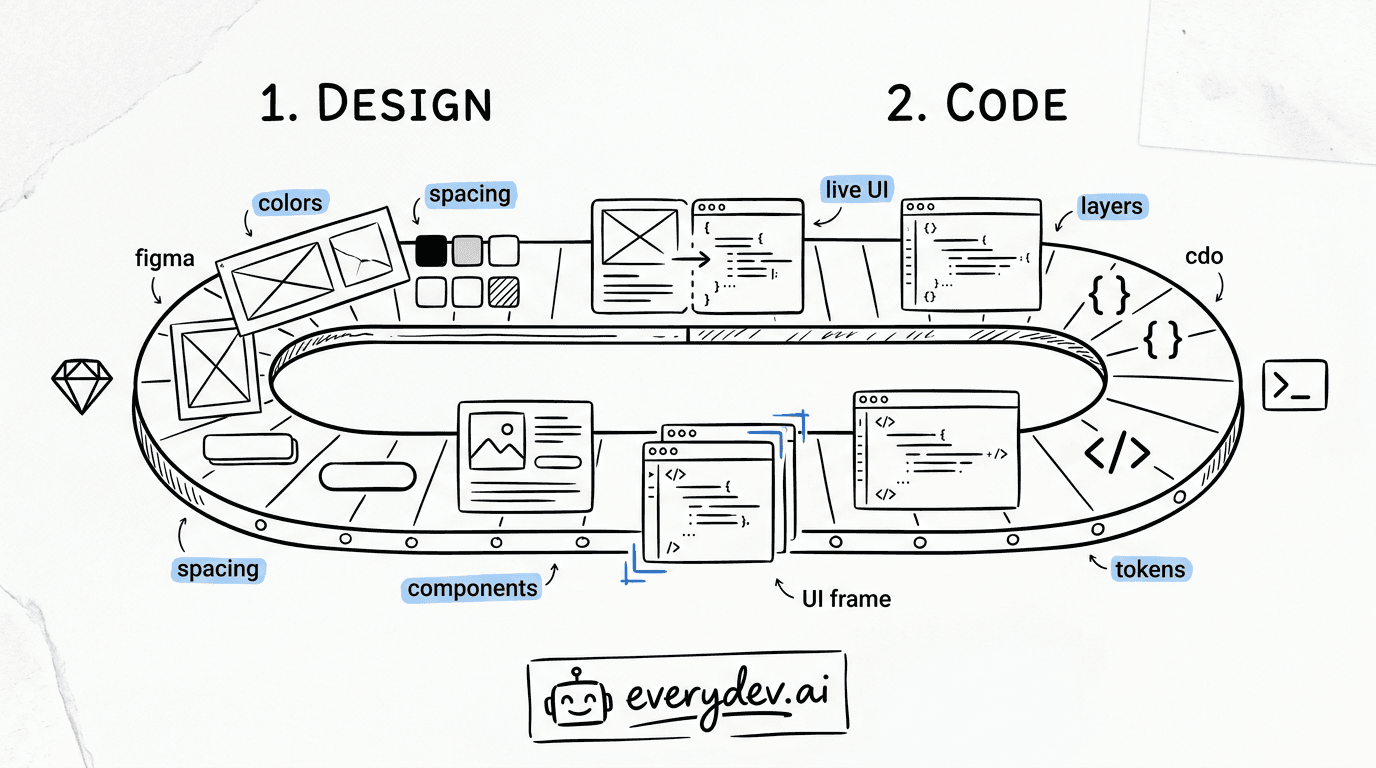
The biggest advantage is the two-way workflow. Tasks that once took days of back-and-forth between designers and developers now happen in minutes. You can design, generate code, make tweaks, update Figma, and repeat, all without the usual handoff problems.
Setting up the MCP server is harder than most blog posts suggest. There are hidden issues, such as the need for Playwright, missing features in some editors, and tools that Codex doesn't support yet. I'll explain where things can go wrong and how to solve them.
What the Figma MCP Server Actually Does
MCP (Model Context Protocol) is a standard for enabling AI tools to communicate with external services. The Figma MCP server is Figma's implementation of that standard. It gives agents like Claude Code or Codex a structured way to read from and write to Figma files.
Before this existed, you'd take a screenshot of your design and paste it into Claude. The AI would squint at pixels and guess your spacing was "probably 16px." Now Claude can query Figma directly and get the exact values.
This improvement is more significant than it may initially appear:
| Screenshot | Figma MCP |
|---|---|
| Estimates spacing | Exact pixel values |
| Guesses colors | Exact hex/rgba values |
| Can't read component names | Knows your actual component names |
| No design token awareness | Reads your variables/tokens directly |
| Can't access design system | Code Connect maps to your codebase |
| Static, one moment in time | Can query any frame on demand |
Now, the AI reads real data rather than just a screenshot. This means the code it generates is actually accurate, as long as you set everything up correctly.
Direction 1: Figma to Code
This direction is simpler and functions across all supported editors.
The workflow:
- In Figma, right-click a frame to copy its node ID. This method is straightforward and works in almost every editor that supports MCP.
- Paste that URL into your AI coding agent and say something like "implement this design using my existing components."
- The agent calls
get_design_contexton the Figma MCP server. - The server fetches the frame's full data from Figma's API: layout, styles, component names, design tokens, spacing, everything.
- That structured data lands in the AI's context window.
- The AI generates code based on actual design data, not visual guesses.
Every element in a Figma file has a unique node ID, like a database primary key for a specific layer or frame. When you copy a link to a selection, the URL contains that ID. The AI extracts it and uses it to query the API for exactly the piece you care about.
You don't need browser automation or extra dependencies. This setup works right away with Claude Code, Codex, Cursor, Windsurf, or VS Code with GitHub Copilot.
Recommended
VS Code Agents Can Now Work While You're Away
You can now ask a VS Code agent to check your repository every morning without starting the session yourself. On my machine, the Automations page in VS Code 1.140 offered a template called Catch up on main, set to run ev…
Read nextDirection 2: Code to Figma (and Why It's Harder)
This is the feature most people want: taking your live app and adding it to Figma as real, editable layers. Instead of just a screenshot, you get actual frames you can move and adjust.
The flow:
- You tell your AI agent to start a local server for your app and capture the UI to a new Figma file.
- The agent spins up your dev server.
- It opens a browser window pointed at your running app.
- A special Figma capture script gets injected into that browser page.
- A toolbar appears in your browser, letting you select what to capture: full screen, a specific element, or whatever.
- When you click capture, it sends that UI to Figma as real design layers.
- Figma gives you a link to the newly created file.
The challenge is that step 3 requires the AI to control a browser, but most coding agents can't do so.
The Hidden Playwright Requirement
Playwright is a tool that lets code control a real browser: open URLs, click elements, take screenshots, and inject JavaScript. The Playwright MCP server wraps all of that and makes it available to AI agents as tools.
When your agent needs to capture live UI in Figma, it must open a browser, navigate to localhost, and inject Figma's capture script into the page. Without a browser control tool, the agent literally cannot perform these steps. The Figma MCP server tells the AI what to do (capture this UI); the Playwright MCP server enables it to do so (control a browser).
If Playwright isn't set up, Code-to-Figma won't work. You might see an error, get a prompt to open a browser (which misses the goal), or nothing may happen.
This is a step that the documentation barely mentions. The Figma blog and Codex pages skip over the Playwright MCP requirement. In the developer docs, it's just a single line and easy to overlook.
Remote vs. Desktop: Two Versions of the Server
Figma offers two versions of the MCP server, and the feature differences are real:
| Remote MCP | Desktop MCP | |
|---|---|---|
| Connection | Hosted by Figma at https://mcp.figma.com/mcp | Runs through the Figma desktop app locally |
| Setup | OAuth login, no desktop app needed | Requires Figma desktop installed |
| Code to Figma capture | Supported | Not supported |
| Selection-based prompting | Not supported | Works (highlight in Figma, AI picks it up) |
To go from code to Figma, you need the remote server. If you only want your AI agent to respond to highlights in Figma, use the desktop server. Choose the one that fits your workflow.
Setup Across Editors
The Figma MCP server isn't tied to Codex. MCP is an open standard. Any tool that supports MCP can plug into it. Codex is one of the tools for which Figma wrote the setup instructions, but it works across the board.
Claude Code
Remote server:
claude mcp add --transport http figma https://mcp.figma.com/mcp
Authenticate via OAuth when prompted. Confirm it's working with /mcp inside a session.
Desktop server:
Enable "Dev Mode MCP Server" in the Figma desktop Inspect panel. It starts at http://127.0.0.1:3845/mcp. Then:
claude mcp add --transport sse figma-desktop http://127.0.0.1:3845/sse
For the full bidirectional flow, also add Playwright:
claude mcp add playwright -- npx -y @playwright/mcp
Codex
In ~/.codex/config.toml:
[mcp_servers.figma]
url = "https://mcp.figma.com/mcp"
bearer_token_env_var = "FIGMA_OAUTH_TOKEN"
Cursor
Click the Figma deep link from their docs, and it automatically opens Cursor's MCP configuration panel. Or manually: Cursor Settings, MCP tab, Add new global MCP server, paste https://mcp.figma.com/mcp.
Other Editors
Windsurf, Cline, Roo Code, Zed, Continue, and VS Code all support the Figma MCP server through their respective MCP configuration files. The core Figma-to-Code direction works in all of them.
The Feature Gap Nobody Mentions
The honest feature matrix looks like this:
| Feature | Claude Code | Codex | Cursor | Windsurf | VS Code |
|---|---|---|---|---|---|
| Figma to Code (design context) | Yes | Yes | Yes | Yes | Yes |
| Desktop MCP server | Yes | Yes | Yes | Yes | Yes |
| Remote MCP server | Yes | Yes | Yes | Yes | Yes |
| Code to Figma (live UI capture) | Yes | Partial | No | No | No |
| Selection-based prompting | Yes (desktop) | Yes (desktop) | Yes (desktop) | Yes (desktop) | Yes (desktop) |
Figma-to-Code works in all editors. Code-to-Figma, which is the live UI capture, is where problems start. Officially, it's supported by Claude Code and Codex, but currently, only Claude Code works reliably.
The main issue is that generate_figma_design, the tool for live UI capture, is missing from Codex's tool list. There is an open GitHub issue about this, but for now, the "bidirectional" workflow Figma promotes only works with Claude Code.
What Tools Does the Server Expose?
For reference, these are the MCP tools the Figma server makes available to your AI agent:
| Tool | What it does |
|---|---|
get_design_context | Get layout, styles, components for a frame |
get_metadata | Get basic info (names, positions, sizes) |
get_figjam | Read FigJam diagrams as XML |
generate_figma_design | Push live UI into Figma as editable layers |
generate_diagram | Turn Mermaid syntax into a FigJam diagram |
get_code_connect_suggestions | Suggest mappings from Figma components to your code |
whoami | Returns who's authenticated (remote only) |
Code Connect: The Multiplier Most People Skip
Code Connect is a Figma feature that maps your actual code components to your Figma components. So when the AI sees a Figma "Button" component, instead of generating a generic <button> element, it knows to import your Button component from your existing codebase.
If you skip Code Connect, the AI generates code with only basic elements. When you enable it, the AI uses your actual component library. This is especially helpful if you have a design system.
The Full Checklist for Bidirectional Workflow
If you want the complete two-way flow, you need all of these:
- Figma account on a Professional, Organization, or Enterprise plan
- Claude Code (the only client where both directions reliably work today)
- Remote Figma MCP server configured and authenticated via OAuth
- Playwright MCP server installed and configured
- Your app is runnable locally or on a public URL
- Figma workspace trust accepted
- Edit permissions on the destination Figma file (if using an existing one)
If you skip step 4, Code-to-Figma will fail without any message. If you skip step 1, nothing will work.
The Gotchas Worth Knowing
The capture process injects JavaScript into your browser. This works on localhost and most public sites, but if your staging server has strict Content Security Policy headers, the script may be blocked. Test it locally before relying on it.
Consistent naming in your design system is important. If your Figma components are disorganized, the AI's code will reflect that. Organize your names to improve code quality.
By default, the system uses React with Tailwind. If you want a different setup, you need to specify it. There is no automatic detection, so be clear in your prompt.
Plan limits apply. You need a Dev or Full seat to use the Figma MCP server; free plans are not supported. There is a community workaround (claude-talk-to-figma-mcp on GitHub) for free accounts, but it uses a WebSocket bridge and cannot perform Code-to-Figma capture.
Rate limits exist, but are reasonable. The generate_figma_design tool has a special rate limit exemption because captures are expensive operations. Standard API calls through the MCP server follow normal Figma API rate limits.
Benefits of Figma MCP
The main benefit of the Figma MCP server is the improved feedback loop it provides. You can design, generate code, make changes, update Figma, get feedback, and repeat. Tasks that once required Slack threads, Figma comments, Jira tickets, and many handoffs now happen in a single Claude Code session.
How much this helps depends on your team. If you work alone and design your own UI, you get the fastest feedback loop since you handle both sides. If you have designers and developers, the AI can now read the real design specifications instead of guessing from screenshots, so your first code version is much more accurate.
This technology is still new. The missing generate_figma_design tool in Codex, the hidden Playwright requirement, and the fact that only Claude Code supports the full workflow indicate that the feature is still in development. However, the foundation is strong, and the direction is promising: design tools and coding agents are now communicating using structured data rather than screenshots. Even with some issues, this is real progress.
Which Client Should You Pick?
| Your situation | Best pick |
|---|---|
| You want the full bidirectional flow | Claude Code; it's the only one where both directions work today |
| You're already on Cursor and want Figma-to-Code context | Cursor; works well, easiest setup |
| You're on a free Figma plan | Community MCP (claude-talk-to-figma-mcp) with any client |
| You want selection-based prompting | Any client + desktop MCP server |
| You want zero local setup | Remote MCP server with any supported client |
Codex is not unique in this context. It was simply the second integration to launch, with Claude Code arriving a week earlier. The timing made it seem like a Codex-Figma partnership, but that is just marketing. MCP is open, and any client that supports it can use the Figma server. Use the editor you prefer and add Figma MCP to it.
About the Author
Founder at EveryDev.ai
Apple, Disney, Adobe, Eventbrite, Zillow, Affirm. I've shipped frontend at all of them. Now I build and write about AI dev tools: what works, what's hype, and what's worth your time.
Comments
No comments yet
Be the first to share your thoughts